
How-to
How to run an esports tournament in Malaysia on ESPODIUM
A step-by-step walkthrough for organizers: set up your organizer profile, create the tournament, take registrations and fees, run the bracket and finish it.
By Lau Kah Hou5 min read
Running a tournament on ESPODIUM takes four steps: set up an organizer profile, create the tournament, approve registrations, then run the bracket and enter results. Hosting is free. Paid tournaments collect entry fees in ringgit through CHIP, or by bank transfer with a receipt you review yourself.
This walkthrough follows the real screens, in the order you will meet them.
1. Set up your organizer profile
Tournaments belong to an organizer, not to a person, so start there.
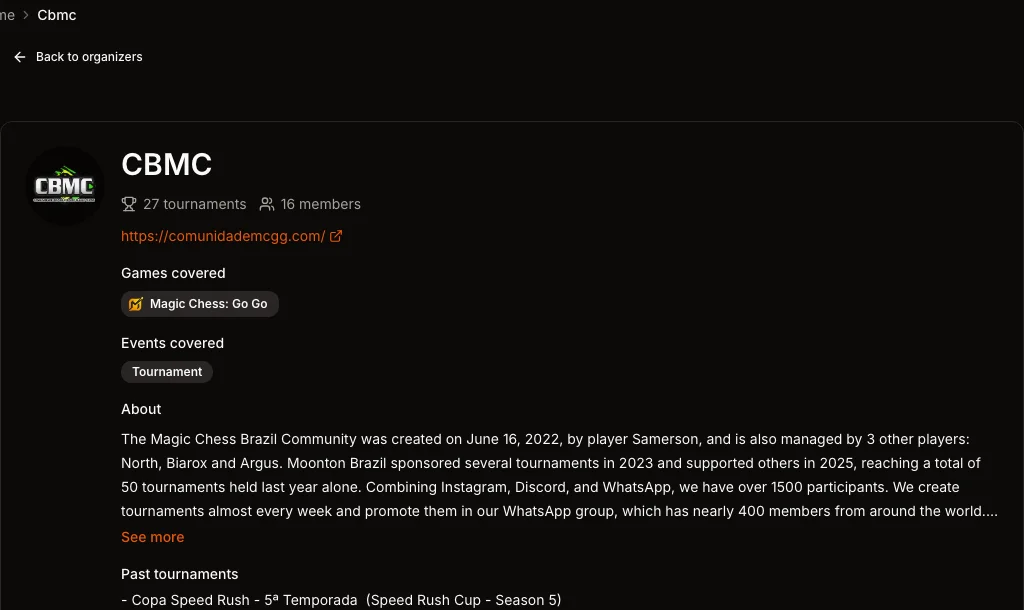
An approved organizer gets a public page listing what they run and every tournament they have hosted.
Go to My Profile → Organizer (the tab opens once your own profile is complete) and fill in:
- Organization Name and Organization Logo
- About and Past Tournaments, which show on your public page
- Website
- Games covered and Event types covered: pick at least one of each. You can only create tournaments for games your organizer covers.
Press Create Organizer. Your profile is then reviewed by the ESPODIUM team. Once it is approved you can claim a Public handle, which gives you a page at espodium.com/org/yourname listing every tournament you have run, with results that stay public.
Bring your team
An organizer can have many members. There are three roles:
- Owner: one per organizer, and the only role that can hand ownership over.
- Admin: runs the roster and the organizer profile, invites members, and can delete tournaments.
- Member: creates and runs tournaments, enters scores and uploads media, with no say over the organizer account.
2. Create the tournament
Open the game you are hosting (for example Magic Chess: Go Go or Mobile Legends) and go to Create a tournament. The game comes from the page you start on, so make sure you are on the right game first. At the top, Creating as shows which organizer the tournament will belong to.
The form is one page, in this order:
Basic Information
- Tournament Title: say what it is. "MCGG Open Season 3, Kuala Lumpur" beats "Season 3".
- Description: format, schedule, prizes and anything players must know.
- Category: Open by default. Other options include Amateur, Student, Women, Corporate and Professional. Test is for rehearsals: only your organizer, ESPODIUM admins and your crew can see a test tournament, and nothing in it counts towards records or MMR.
- Tournament Mode: depends on the game, for example Team, Duo or Solo (FFA) for Magic Chess: Go Go, or Solo (1v1) for eFootball.
- Venue: Online, Offline or Hybrid.
- Who can register: restrict entry by country if needed.
- Rulebook URL: link your rules document. There is no separate rules text box, so either link a document or put the key rules in the description.
- Group Link URL: your WhatsApp or Discord group for players.
Tournament Capacity: the maximum number of teams or players. For team events, set the roster size: a captain is always required, plus main players, substitutes, coaches and analysts.
Registration Fee: Free or Paid. For a paid event, set the fee, choose Per Team or Per Player, and enter the Base Amount (MYR), which is what CHIP actually charges.
Prize Pool, and Payment Information if you also accept bank transfer: add your bank details, a payment link or a QR image here.
Tournament Dates: the timezone (Kuala Lumpur by default), the registration window and the matches window.
Tournament Stages: one stage called Main Stage, single elimination, is ready to go. Add more if you want groups that feed a playoff. Our guide to choosing a tournament format explains the options.
Press Create Tournament. The tournament page is live straight away at its own link, so you can start sharing it.
3. Take registrations and fees
Registrations arrive in the tournament's Admin tab, under Participants. A queue selector shows where each one stands.
For a free tournament, players or teams register and land in Waitlisted. Press Confirm for each one you accept, or Reject.
For a paid tournament there are two approvals, so you only take money from entrants you have accepted:
- A team registers and appears under Requested. Press Approve to pay.
- They now see Make Payment. They either pay through CHIP, which confirms them automatically, or upload a bank-transfer receipt.
- A receipt puts them in Waitlisted. Check it against your bank account and press Confirm.
Every card shows the roster, the CHIP invoice or the uploaded receipt, so you can check each entry before confirming.
For team events, players must be active members of the team and have a game profile, so encourage captains to set up their team page properly before registration opens.
4. Build the bracket
When registration closes, go to Admin → Bracket & Stages.
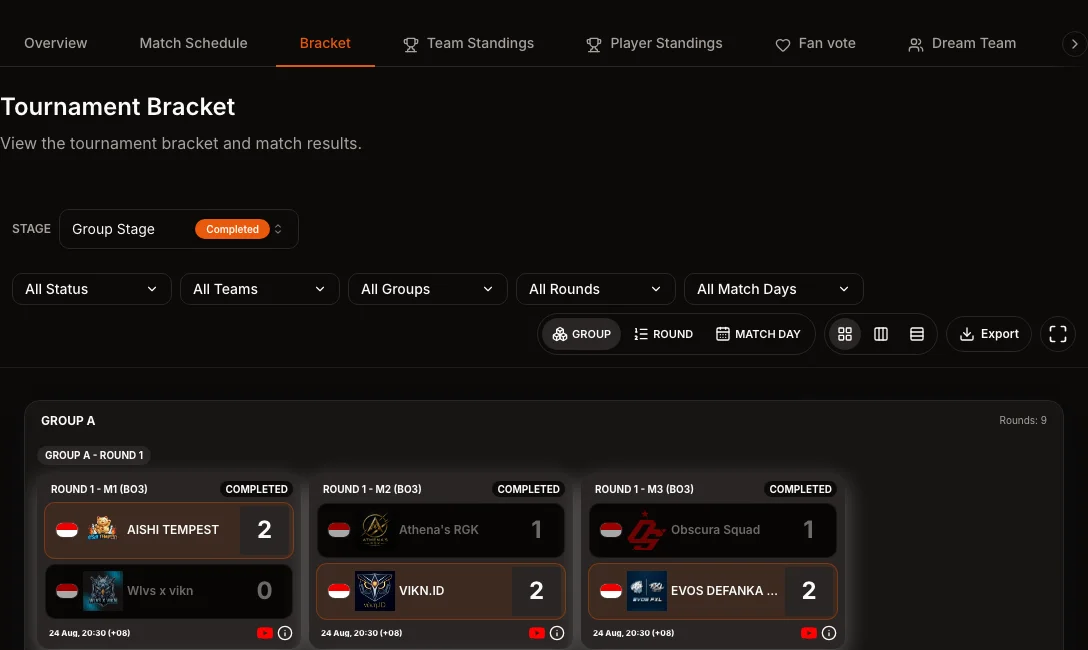
A generated group stage: each card shows the format, the score and the scheduled time.
- Choose the stage structure. Only formats your game and mode support are shown.
- Set the match rules: best of 1, 3 or 5, points for round robin, and tie-breakers.
- Seed with Shuffle, or place teams by hand.
- Press Generate Bracket.
If the field is not a power of two, ESPODIUM adds byes for the top seeds and completes those matches automatically.
5. Run match day
On each match card, press Start Match when it begins and Mark Completed when it ends. Scores go in through the match editor. For 1v1 games you can switch to Quick results, where you type the final score, or Detailed, where you enter each game.
Anyone who is a member of your organizer can enter results, so split the work across your team. Use the Crew tab to credit casters, hosts, analysts, marshalls and streamers; they appear on the tournament page and in their own profiles.
Assign a stream to a match in the Match Schedule tab and a LIVE badge appears on it once it starts, linking viewers to the broadcast. Players get a private chat room for each match, plus General Chat and Participants Chat for the whole event.
6. Finish and celebrate
Once the final is played, the standings and podium are settled. The tournament page then shows a results summary naming the champion, runner-up and third place.
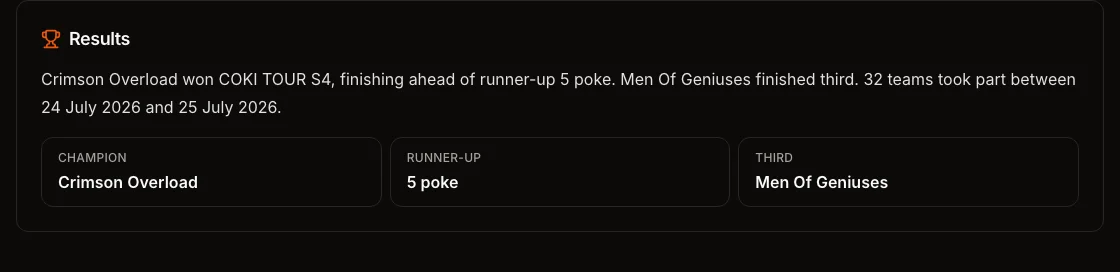
Once the podium is decided, the tournament page summarises the result.
- Certificates: in Admin → Certificates, pick a design, add signatures and publish. Players, crew and organizers download their own, and anyone can verify one at espodium.com/certificates.
- Posters: Open Poster Studio from the tournament details to make a poster from your tournament's data, with sponsor logos and a QR code back to the page.
Next steps
- Read how hosting works.
- Pick a format with our format guide.
- Run a dry run first: create a tournament in the Test category, register a few friends, and click through every step before your real event.
Written and checked by the ESPODIUM editor. How we write