
How-to
E-certificates for esports events: how to issue and verify them on ESPODIUM
Who gets an ESPODIUM e-certificate, how organizers design and publish them, and how anyone can check one is genuine with its code.
By Lau Kah Hou7 min read
Every finished tournament on ESPODIUM can issue e-certificates to its teams, players, crew and organizer. The organizer picks a design and presses Publish; each recipient then downloads their own as a PDF or image from the tournament's Certificates tab. Every certificate carries a 10-character code and a QR code, and anyone can type that code at espodium.com/certificates to confirm it is real.
Who gets a certificate
ESPODIUM works out the recipients from the tournament itself, so you never type a list of names.
- Teams. In a team tournament, each team gets a team certificate. By default it lists the roster under the team name.
- Players. Each player gets their own certificate. Only players who took part in at least one match get one, so no-shows are left out.
- Coaches and analysts. With the "Coaches and analysts" setting on (it is on by default), staff get their own certificates and appear on the team's.
- Crew. Everyone credited as crew on the tournament (casters, hosts, analysts, streamers, marshalls and the other crew roles) gets one Certificate of Appreciation listing every role they held.
- The organizer. The organizing team gets its own certificate too, with its logo above its name.
Achievement or participation
Players and teams get one of two titles. The top places of the final stage get a Certificate of Achievement, with their placement printed ("Champion", "1st Runner-up", "2nd Runner-up", "5th Place" or "Top 8"). Everyone else gets a Certificate of Participation.
By default the cutoff is half the final-stage field, up to a maximum of 8. Sixteen finalists give a top 8, ten give a top 5 and six give a top 3. You can change it per tournament with the "Certificate of Achievement for the top" setting. Anyone tied at the cutoff is included, so if four teams share 5th to 8th and your cutoff is 6, all four get an achievement.
When certificates become available
Participants can only download certificates once every stage of the tournament is completed and the organizer has published them.
Tournaments marked as a Test never show certificates to participants, and their codes do not verify.
Setting up certificates as an organizer
Open your tournament, go to Admin, then the Certificates sub-tab. The editor shows the certificate in the middle and a tool rail beside it with six panels: Template, Background, Text, Content, Signatures and Sponsors.
1. Choose a template
There are four:
| Template | What it looks like |
|---|---|
| Classic | Ivory paper, serif name, a fine frame |
| Arena | Dark, like the site, with orange accents |
| Minimal | White and plain, prints cheaply |
| Your design | Your own artwork behind the text (needs a Silver membership) |
You can set an accent colour, which colours the placement and the frame details. For Your design, upload your artwork under Background. A4 landscape at 3508 x 2480 px prints sharp; the editor warns you if an image is too small. You can then add a dark or light panel behind the text, scale the text, set the side margins and choose whether the ESPODIUM and QR badges sit at the top or bottom.
2. Decide what each certificate prints
The Content panel controls:
- Print the placement. Turn it off and everyone gets a Certificate of Participation.
- Player name: Full name, In-game name, or Full name (IGN), which is the default. Full name falls back to the IGN when a player has not set one.
- Country beside the team name: Flag, Code (MY) or None.
- Team members and Coaches and analysts toggles.
Under Text you can replace the default titles and body wording, and set the text to centre or left alignment.
3. Add signatures
Every certificate is signed by Ts. Lau Kah Hou, Founder of Espodium. On top of that you can add up to two signatures of your own, with a name, a title and an optional signature image. Signature images are free on every plan.
If you run many tournaments, set your signatures once instead of per tournament. Go to your settings at /me, open the Organizer tab, and fill in the Certificate signatures card. Every tournament that has not set its own signatures uses these. Only the organizer's owner or admins can change them.
4. Add sponsors
The Sponsors panel lists your sponsors and partners. Each can be labelled Title sponsor, Gold sponsor, Silver sponsor, Partner, Media partner or Venue partner. They show on the tournament overview and, with "Print sponsors on certificates" on, on every certificate. Title sponsors print larger. Classic and Minimal print on light paper, so upload logos that read on white.
5. Preview, publish and lock
Use Preview as to see the certificate as a specific team, player or crew member, and the language picker to see it in another language.
The bar above the editor has three states:
- Draft. Only organizers can see the certificates. Save keeps your changes private.
- Published. Press Publish and participants can download theirs from the Certificates tab. Until you lock, a certificate updates if, for example, a player changes their name.
- Published and locked. Press Lock and issued certificates keep exactly what they printed, even if a player renames later. You can Unlock or Unpublish if you need to fix something.
Lock once you are sure the results and names are final.
How players find and download their certificate
- The tournament page. Open the tournament and go to the Certificates tab. "Your certificates" shows each certificate you earned there, such as your player certificate and your team's.
- Your settings. Go to /me and open the Certificates tab. It lists your player and team certificates from every finished tournament, with a link to each tournament.
Each certificate has four buttons:
- PDF: an A4 landscape file, ready to print or attach.
- Image: a PNG.
- Copy image: puts the certificate on your clipboard, for pasting into a chat or post.
- Copy verify link: copies the certificate's verification URL.
A green Verifiable badge means the certificate has a code. Codes are issued the first time a certificate is opened after publishing.
Organizers also see an "All certificates" list with a search box. Its Team certificates, Player certificates, and Crew and organizer buttons each download one multi-page PDF.
Languages
A certificate is drawn in the language of the person viewing it, not a language fixed by the organizer. ESPODIUM supports English, Malay, Indonesian, Chinese, Filipino, Portuguese, Vietnamese, Thai, Burmese, Spanish and Arabic. Names, team names and anything the organizer typed stay as written.
How verification works
Each certificate prints a code in the form AB12-CD34-EF beside a QR code, with "espodium.com/certificates" underneath.
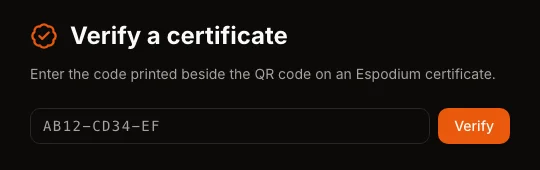
Anyone can check a certificate at espodium.com/certificates by typing the code printed on it.
- Scan the QR code. It opens the certificate's page at espodium.com/certificates/ followed by the code.
- Or type the code. Go to espodium.com/certificates, enter the code and press Verify. The lookup forgives the usual typing mistakes: it ignores dashes and spaces, and reads the letter O as zero and I or L as one.
A genuine certificate opens a page headed "This certificate is genuine". It names the recipient, their placement, the tournament and the organizer, shows the code and the issue date, and draws the certificate itself. A link goes to the tournament page, so a reader can check the results.
An unknown code, a certificate whose design was taken back to draft, or one from a Test tournament all return "No certificate has the code ...". The verification page is not indexed by search engines, because it names a person.
Who can see your certificates
The certificates on your profile are visible only to you and ESPODIUM admins. A verify link you share still works for anyone.
Why a verifiable certificate matters
A PDF on its own is easy to edit. A certificate with a code that resolves on espodium.com is something a teacher, scholarship panel, university or employer can check in a few seconds, without contacting the organizer.
For students, that turns an esports result into evidence an application can cite. For players and crew, the verify link fits on a CV or portfolio, and casters and marshalls get the same record as the teams they worked for.
Next steps
For organizers:
- Make sure every stage of your tournament is marked completed.
- Add your crew to the tournament so they get certificates.
- Set your default signatures once in /me, Organizer tab.
- Pick a template, check a few recipients with Preview as, then Publish.
- Lock when names and results are final.
For players:
- Open the tournament's Certificates tab, or /me, Certificates tab.
- Download the PDF and copy the verify link for your CV.
To see what else ESPODIUM gives organizers, read hosting on ESPODIUM. To check a certificate now, go to espodium.com/certificates.
Written and checked by the ESPODIUM editor. How we write