
Guide
How to build a team page and roster that organizers trust
Set up your ESPODIUM team, roles and game profiles so organizers can accept your registration quickly, and your results stay on your record.
By Lau Kah Hou7 min read
Organizers accept a team faster when the team is easy to check: every player on the roster is a real member with a game profile, the roles are clear, and the details they need are already filled in. On ESPODIUM most of that lives in two places, your team settings and the roster you submit when you register. This guide covers both, from creating the team to what happens to your roster once the tournament starts.
Teams belong to one game
A team on ESPODIUM exists for one game. You can run a team in MLBB and another in PUBG Mobile, and two teams in different games may even share a name and URL, because names and links only need to be unique within a game.
You can be an active member of only one team per game. To join a different team in the same game, you leave your current one first. This is one of the reasons organizers can trust a roster: the same player cannot sit on two competing teams in one game.
Create the team
You need a completed user profile before the team settings open. Then:
- Go to Settings and open the Team tab.
- Pick the game in the game selector.
- Press Create Team.
The form asks for:
- Team Logo: upload an image under 25 MB, then crop it. Leave space around the edges so the logo is not cut off in square and circle placements.
- Team Name: 2 to 50 characters.
- Team Tag: 2 to 4 characters. It fills in from the name, and you can change it.
- Public team URL: lowercase letters, numbers and hyphens, for example
niki-esports. Leave it blank and ESPODIUM builds one from the name and tag. The form tells you straight away if the URL is taken in that game. - Team Bio: up to 500 characters.
- Website, Country, and Organization (Optional).
Fill in Country. Some tournaments only accept entrants from certain countries, and ESPODIUM checks the team's country when you register. A team with no country set cannot enter a country-restricted tournament until you add one.
Whoever creates the team becomes its Owner, with the Captain and Player roles already assigned.
Add members
There are two ways in.
Invite. The owner, a co-owner or an admin uses Invite Member and searches by IGN or display name. The invited player sees a Team Invitations card on their own Team tab with Accept and Decline.
Apply. Players can press Apply on a team from the public Teams list for that game. The button only shows to logged-in players who have no team in that game yet. An applicant needs a game profile for that game first, and the application waits under Pending Applications until the owner, a co-owner or an admin approves or rejects it.
Two kinds of role
Each member has one access role and any number of functional roles. You set both in the Assign Roles dialog.
Access roles decide what someone can manage:
- Owner: one per team. Moves to someone else only through Transfer Ownership, after which the old owner stays on as a co-owner.
- Co-Owner and Admin: can edit the team profile, invite players and handle applications.
- Member and Viewer.
Functional roles describe what someone does on the team: Captain, Coach, Analyst, Player, Substitute, Manager and Strategist. Pick as many as apply. The public team page shows each member's access role and their functional roles as badges.
Functional roles carry weight later. Members with Captain, Coach or Manager can edit the team's tournament roster, as can owners and co-owners.
If the owner wants to leave, they choose a new owner first, or disband the team. Disbanding marks the team inactive and removes every member. Its records are kept.
Set up every player's game profile
A game profile holds a player's in-game name (IGN) and game account for one game. Each player sets theirs under Settings, on the Game tab.
This matters more than anything else on the team page. Results, standings and player stats are recorded against the game profile. A player with no game profile shows up in invite searches as "No game profile yet", cannot apply to a team, and triggers a "has not set up a game profile yet" warning when you build a tournament roster.
The game profile lock
Many tournaments lock game profiles during play. When the organizer has Lock game profiles during play switched on, each player's IGN and account for that game are fixed from their first recorded game until the tournament ends. Profiles for other games are not affected. The tournament page tells players which rule applies with a notice: Game profiles lock during play, or Game profiles stay editable.
The lock is on by default for new tournaments, except those in the scrim and test categories. A player cannot unlock their own profile. If an IGN was mistyped, ask the organizer: they can turn the lock off, let the player fix it, and turn it back on. While it is off, every participant in that tournament can edit their profile.
The practical advice: check every IGN and account before the first match, not after.
Register for a tournament
On the tournament page, start registration and choose your team in Select Team and Assign Roles. You then fill the tournament roster:
- Captain
- Main: the starting players
- Substitute, Coach and Analyst, if the tournament allows them
The organizer sets how many of each a team may register. Every player you choose must be an active member of the team, and the dialog tells you exactly what is missing (for example "Please select a captain for your team.") instead of just greying out the button. Any active member can submit the registration, but a team can only have one registration in progress per tournament.
If the tournament has Require identity number switched on, every player needs an identity number or passport saved on their profile first. The dialog names the members who are missing one. Only organizers can see submitted identity numbers.
Roster changes after registering
Until the first game of any stage 1 match is recorded, the people listed above (owners, co-owners, captains, coaches, managers, and whoever registered the team) can use Edit Team Roster. Your approval status is kept when you save.
After that first game, the roster is locked unless the organizer opens a transfer window. Organizers set each window's start and end, and can cap Max transfers in (per team) and Max transfers out (per team). A window can only be created once stage 1 has started.
A transfer window changes who is on the roster. It does not unlock anyone's game profile.
What organizers check before accepting a team
Organizers review registrations under Manage Registrations, sorted into Requested, Pending Payment, Waitlisted, Confirmed and Rejected. Paid tournaments may approve a request before payment, then confirm after checking the receipt. Some checks happen before the organizer ever sees your entry:
- The roster fits the tournament's limits for captain, main, substitutes, coaches and analysts.
- Every listed player is an active member of the team.
- The team's country is allowed, if the tournament restricts countries.
The registration dialog also warns about missing identity numbers when the tournament requires them.
What is left is judgement, and that is where a tidy team page helps. Organizers open the team roster and look for recognisable IGNs, clear roles, a logo and a real team history.
What your public team page shows
Your team page lives at /{locale}/{game}/teams/{your-team-url}, for example /en-GB/mlbb/teams/niki-esports. It shows:
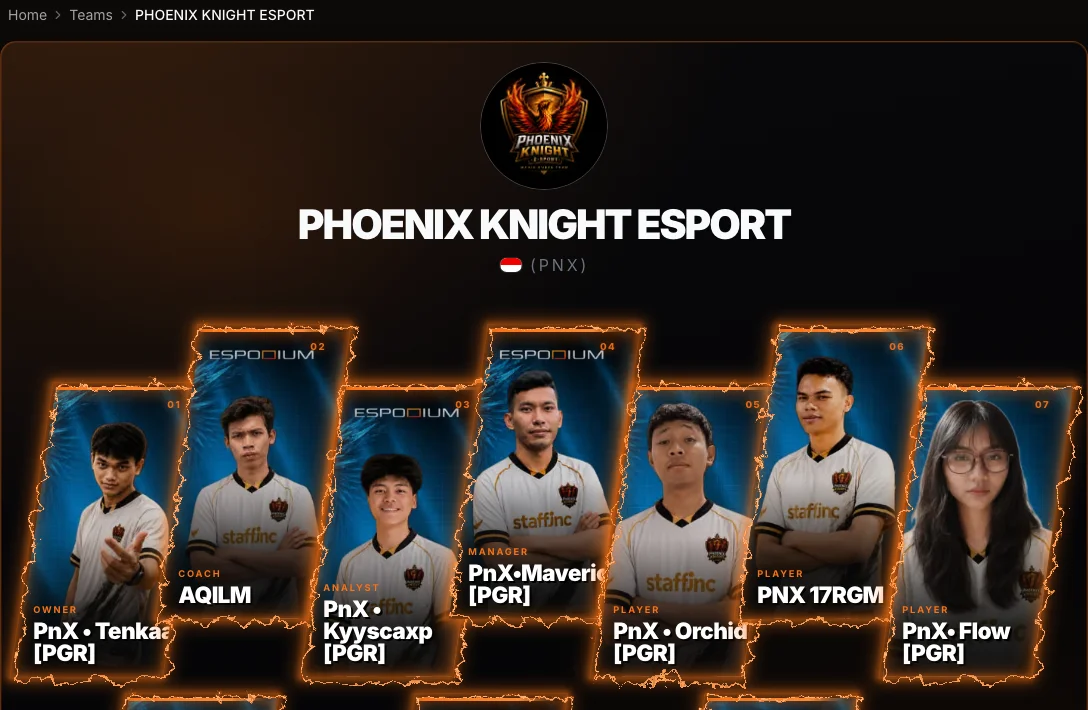
A public team page: logo, tag, country and the roster with each member's role.
- The logo, name, tag, country flag and bio.
- Team Members, with each member's IGN, country, access role and functional roles.
- Achievements: every tournament the team finished, with its placing, roster size, games played, points and wins, each linked to the tournament page. Podium finishes are highlighted.
- Match History, game by game, with the team's MMR after each game and the change. A game still being processed shows "MMR pending".
On the public Teams list, a team's MMR comes from the team-mode ratings of its active members, and you can sort the list by it. MMR belongs to players, so moving teams does not reset a player's rating.
Checklist
- Country, logo, tag and bio filled in.
- Every player has a game profile for this game, with the IGN they actually use.
- Captain and at least one Coach or Manager assigned, so more than one person can fix the roster.
- IGNs checked before the first match, in case the tournament locks profiles.
- Identity numbers saved, if the tournament asks for them.
Browse teams in your game, for example MLBB teams, and read how MMR is calculated.
Written and checked by the ESPODIUM editor. How we write